How it works
Three steps to a cleaner photo library.
Photo Cleanup uses a straightforward workflow built around safety and control. No surprises, no auto-deletion, no photo uploads.
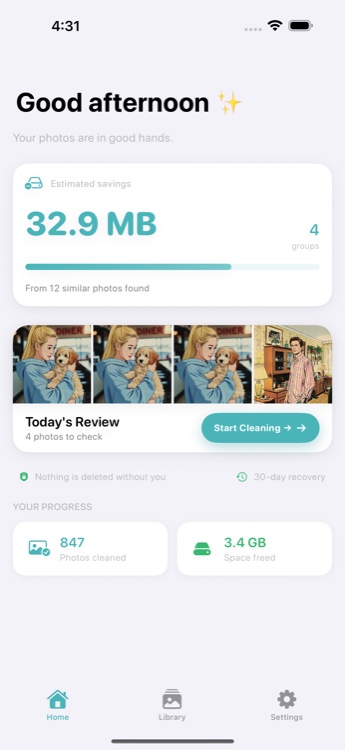
Scan your photo library
When you open Photo Cleanup, it scans your iPhone photo library directly on your device. No photos are uploaded to any server. The app uses a 4-stage detection pipeline: burst grouping, exact duplicate matching via file hashing, near-duplicate detection, and Vision framework feature prints for visually similar photos.
The scan runs entirely on-device using Apple's built-in frameworks. Your photos never leave your iPhone.
Review one group at a time
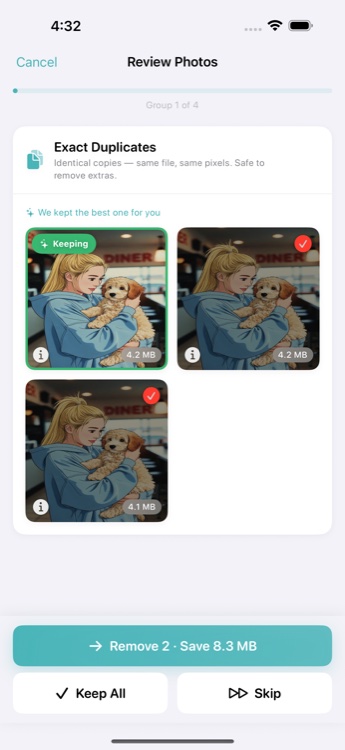
Instead of showing you hundreds of photos at once, Photo Cleanup presents one group of similar photos at a time. You see the photos side by side and choose which one to keep. The app suggests the best photo based on resolution, favorites status, and recency.
This deliberate pacing prevents overwhelm. You can stop after a few groups and come back later.
Confirm and delete safely
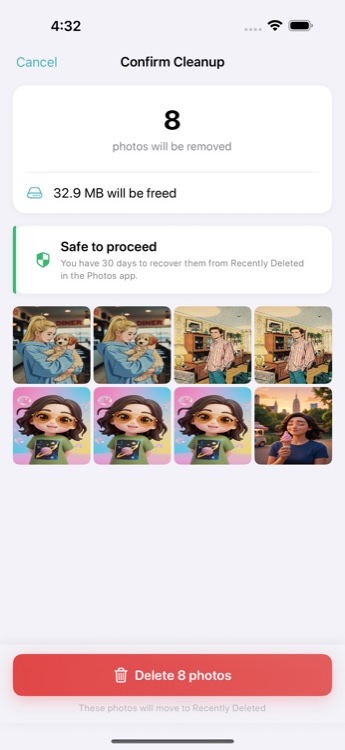
When you confirm a deletion, the photos move to the Recently Deleted album in Apple Photos. They stay there for 30 days before permanent removal. You can restore any photo from Recently Deleted at any time within that window.
Nothing is permanently deleted immediately. The 30-day safety net gives you time to change your mind.
Ready to clean up your photo library?
Start with a free scan. Review a few groups. See how it feels before committing to a cleanup session.